Lontanium user manual
Live, step-sequenced buffer effects for iPad — standalone and AUv3.
What Lontanium is
Lontanium is a live effects instrument for iPad. It listens to the audio coming in — a synth, a guitar, a drum machine through your audio interface — and keeps the last 20 seconds of it in a buffer. Five lanes each run an effect (reverse, pitch, glitch, granular, bitcrush, tape degradation) that plays from that buffer, switched on and off by an 8-step sequencer and shaped step by step.
It works as a standalone iPad app, and as an Audio Unit (AUv3) plugin inside hosts like AUM.
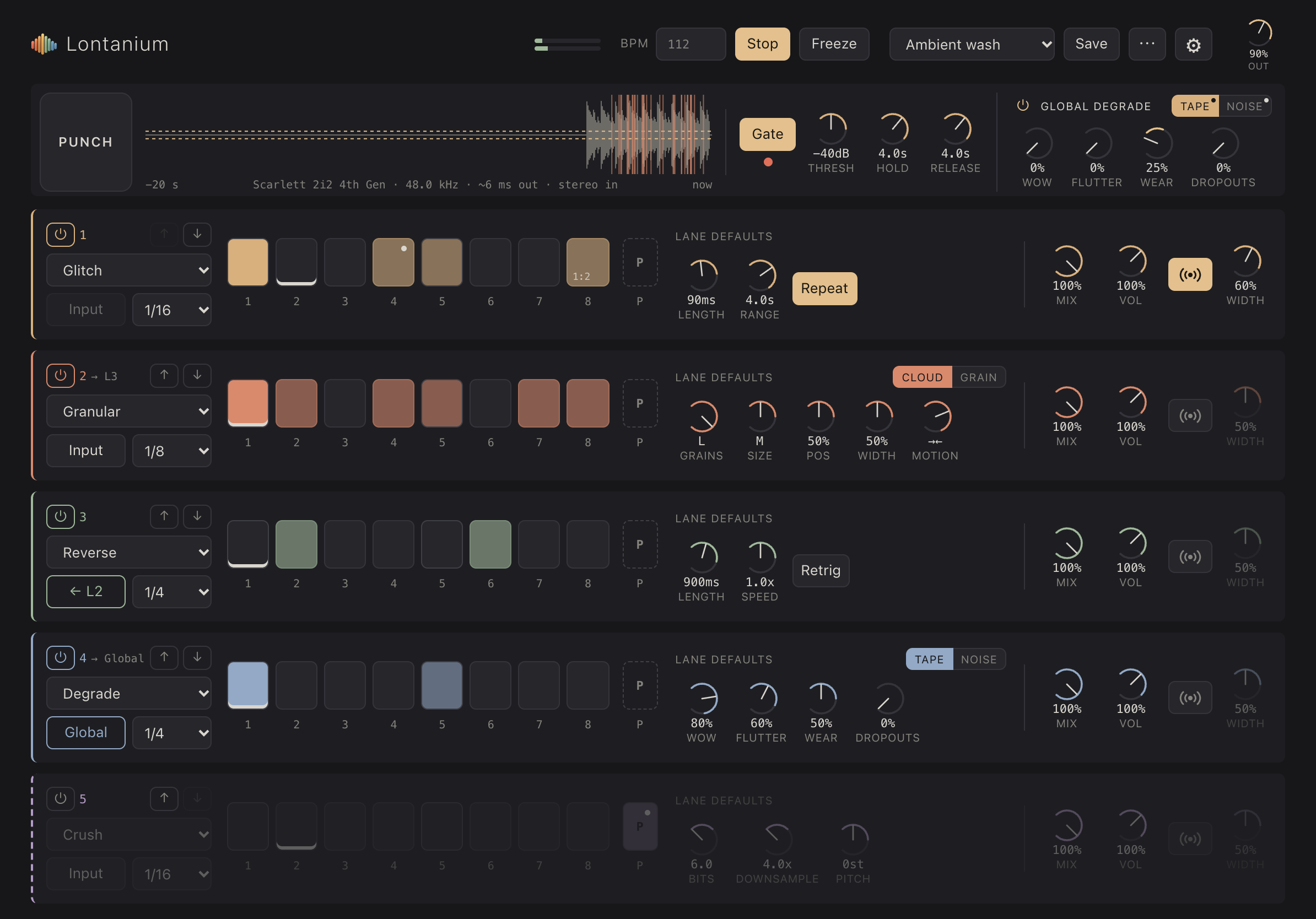 123
123- Top bar: levels, tempo, transport, presets, settings
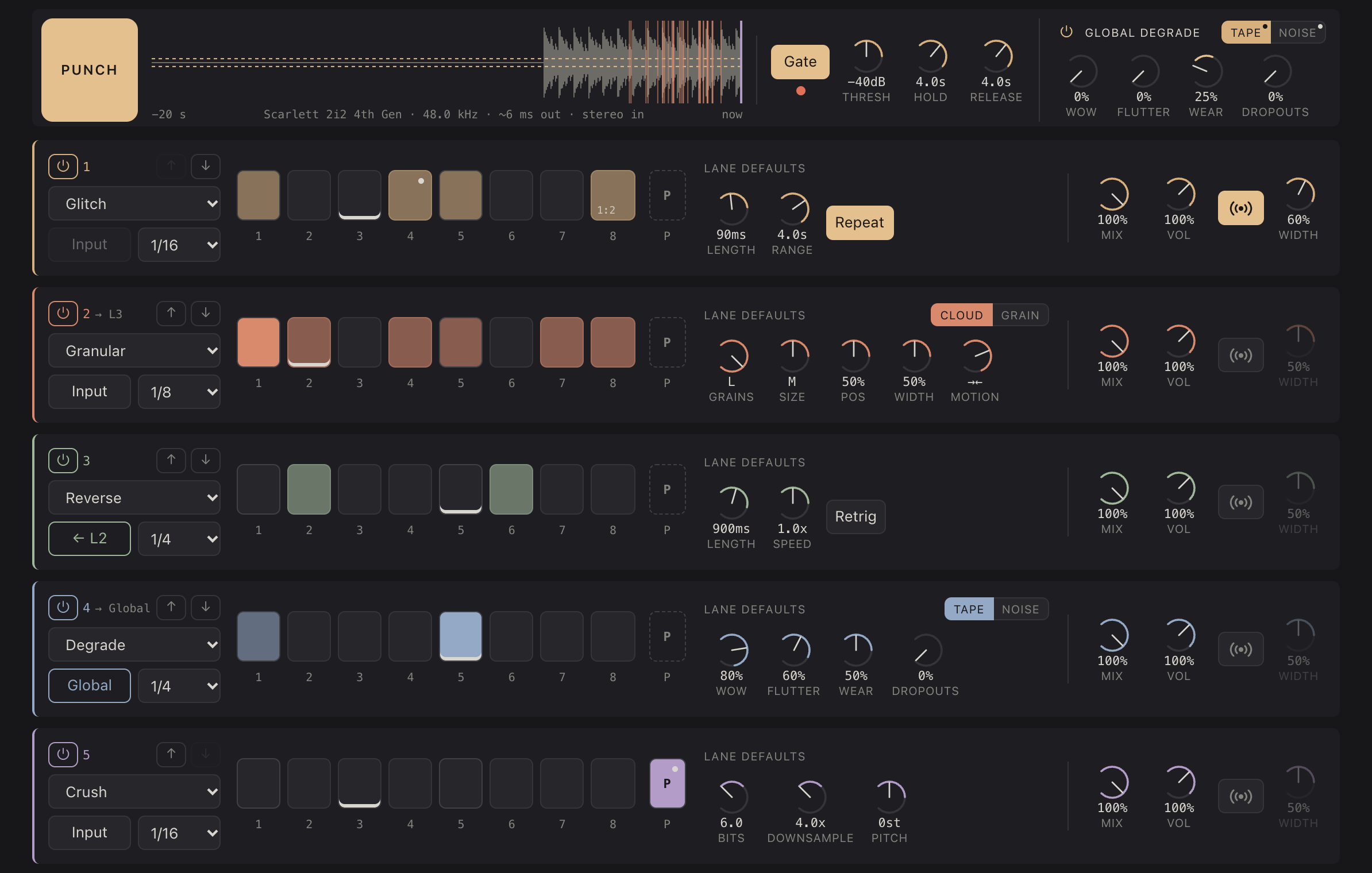
- Performance row: PUNCH, buffer waveform, Gate, Global degrade
- Five effect lanes
Getting started
- Connect your audio interface (or use the iPad’s microphone). Lontanium uses whatever input and output iPadOS is using.
- Tap Start audio in the top bar. The first time, allow microphone access — that’s how iPadOS lets apps hear any audio input. The line under the waveform then shows your interface, the sample rate and the latency.
- Tap Play (or press Space on a keyboard). The step sequencer starts at the tempo in the BPM field, and the lanes start applying their effects on the steps you’ve switched on.
When Lontanium runs as a plugin, audio comes from the host, so there’s no Start audio button, and tempo and Play/Stop follow the host (see Using it in AUM).
In portrait the layout stacks: the waveform gets its own row and each lane shows its steps above its controls.
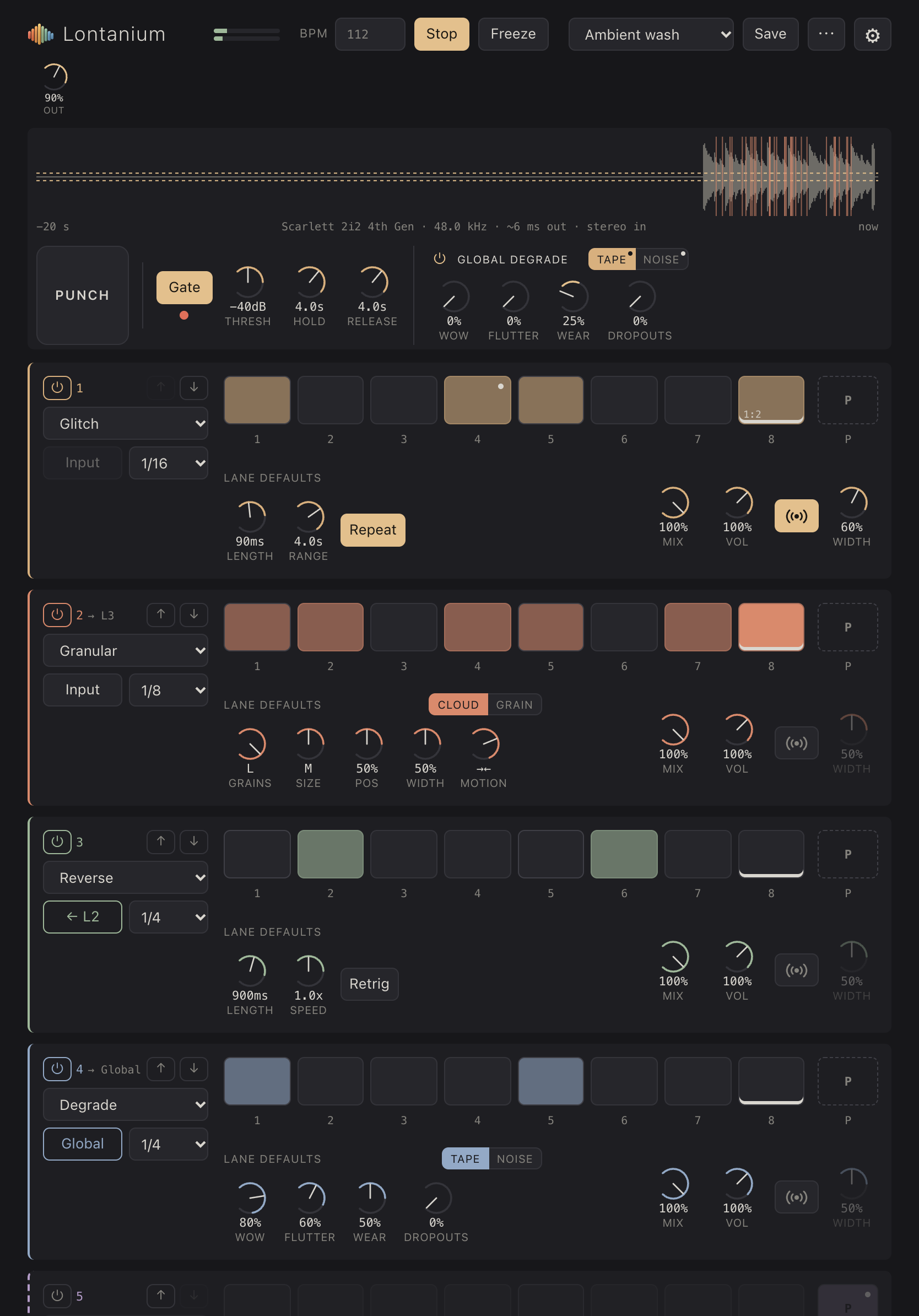
The top bar
 123456789
- Input / output level
- Tempo (BPM)
- Play / Stop
- Freeze the buffer
- Preset list
- Save preset
- More preset actions
- Settings (MIDI)
- Output level
- Levels — input (top) and output (bottom); red means clipping.
- BPM — the tempo of the sequencer. Each lane chooses its own step length against this tempo.
- Play / Stop — starts and stops the sequencer. When stopped, lanes pass audio through unaffected (except Punch, see below).
- Freeze — stops recording into the buffer, so the effects keep playing from what’s there.
- Presets, Save, ⋯ — see Presets. ⚙ opens Settings (MIDI).
- Out — overall output level.
The buffer, Gate, Hold and Release
 12345678
- PUNCH
- Buffer waveform (last 20 seconds)
- Gate on/off
- Threshold
- Hold
- Release
- Global degrade on/off
- Tape / Noise pages
The waveform shows the buffer: the last 20 seconds of input, newest on the right. Coloured lines show where each lane is currently playing from it.
Gate makes the buffer record only while there’s sound above the Thresh level (the dashed lines on the waveform). Silence between notes isn’t recorded, so when you play sparsely the effects always have notes to work with. The red light shows when the buffer is recording.
With Gate on, Hold and Release decide what happens after you stop playing: the buffer stays at full level for the Hold time, then fades out over the Release time and is cleared — so the effects die away instead of repeating old material forever. Turn Hold all the way up (∞) to keep the buffer indefinitely.
Lanes and steps
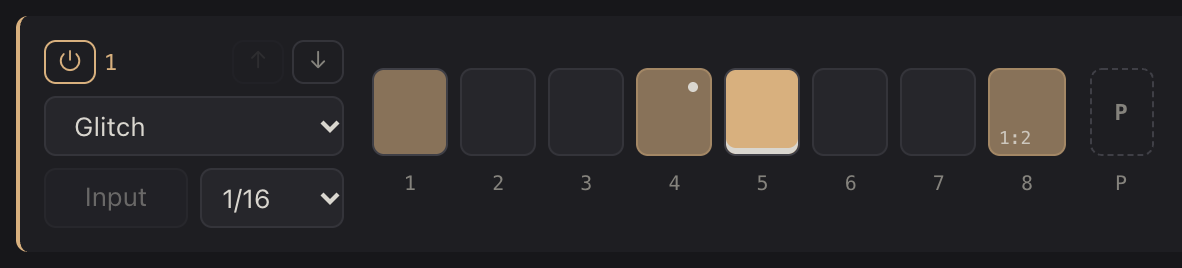 12345678
- Lane on/off
- Move lane up / down
- Effect
- Source
- Step length (division)
- Steps: tap to switch on/off
- Step number: select to edit the step
- P (punch) step
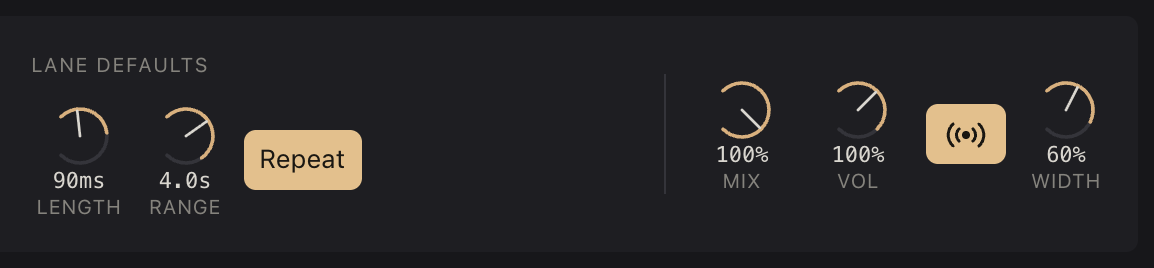 12345
12345- Effect controls
- Mix
- Volume
- Spread
- Spread width
- On/off (⏻) switches the lane off; it then passes audio through untouched. Keys 1–5 do the same. The arrows move the lane up or down.
- Effect — Off, Reverse, Pitch, Glitch, Granular, Crush or Degrade (see Effects).
- Source — Input processes the live input. ← Ln processes the output of the lane above instead, chaining the two. Degrade lanes also offer Global (see Degrade).
- Step length — how long each of the 8 steps lasts, from 2 bars (2/1) to 1/32, including triplets. Lanes with different lengths drift against each other.
- Steps — tap a pad to switch the effect on for that step. While playing, the current step is underlined and lights up when the effect is heard.
- P — the punch step (see Punch).
- Mix — how much of the effect you hear while a step is on. Vol — the lane’s level.
- Spread — places the effect at a random point in the stereo field on each step; Width sets how far.
Knobs: drag up or down (hold Shift on a keyboard for fine control), or use a mouse wheel; double-tap to reset.
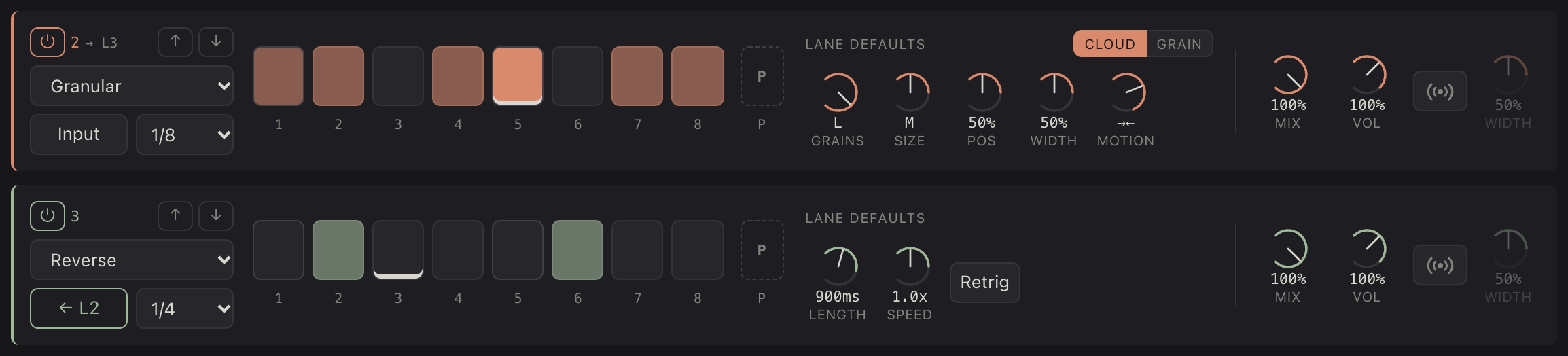
Lanes run side by side and are mixed together. When a lane takes its source from the lane above, that lane’s output goes only into the next lane — like a pipe:
 12
12- Lane 2 feeds lane 3
- Lane 3 takes lane 2’s output
Per-step values and conditions
 123456
- Selected step (dot = has its own values)
- Now editing this step
- Trig condition
- Clear the step’s own values
- Highlighted value = set for this step only
- Condition badge
Tap a step’s number under its pad to edit that step. The effect knobs now set values for that step only; a value that differs from the lane’s defaults is highlighted, and the pad shows a dot. Tap the number again to go back to the lane defaults. Clear step removes the step’s own values.
While a step is selected you can also give it a trig condition:
- Always — the default.
- 90% … 0% — the chance that the step plays each time the sequence reaches it.
- A:B — plays on pass A of every B passes through the lane’s 8 steps. For example 1:2 plays every other time, 3:4 on the third of every four.
Steps with a condition show it on the pad.
Effects
All effects except Crush play from the buffer, so they can reach back into what you played a moment ago.
- Reverse
- Plays the most recent audio backwards. Length — how long each reversed slice is (up to 18 s). Speed — 0.25× to 4×, which also shifts the pitch (2× = an octave up); it snaps to musical values. Retrig — when off, consecutive steps continue one long reverse instead of starting a new one each step.
- Pitch
- Shifts the pitch of the input by Pitch semitones (±24) with a deliberately lo-fi, grainy character. Grain sets the grain size. Hold (with Gate on) keeps re-playing the last note as a drone while you’re not playing.
- Glitch
- Jumps to a random spot in the buffer and plays a short slice. Length — slice length. Range — how far back it can jump. Repeat — when on, the slice loops (stutter); when off, every slice is a new random jump. Glitch prefers spots where there’s sound.
- Granular
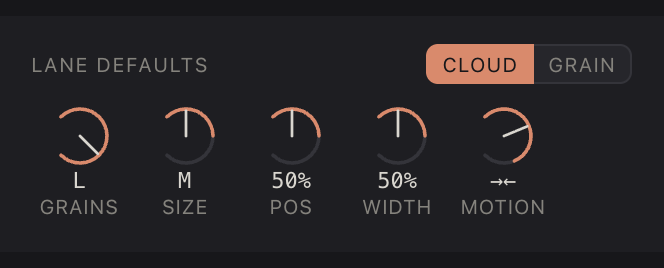
- A cloud of short grains read from the buffer. Its controls are on two pages: Cloud — Grains (how many at once: S/M/L), Size (S/M/L), Pos (where in the buffer: left = older, right = now), Width (how spread out), Motion; Grain — Range (how far back Pos reaches), Reverse (the share of grains played backwards), Pitch and Pitched (the share of grains that are pitch-shifted), Retrig.
Motion moves the cloud during a step: · stays put, → and ← sweep across Width, →← starts wide and narrows onto Pos, ←→ does the opposite. With Retrig off, a run of steps shares one motion. - Crush
- Bit and sample-rate reduction of the live input. Bits — lower is grittier. Downsample — higher is more aliased. Pitch — shifts the pitch before crushing (0 = no shift).
- Degrade
- Tape-style wear, on two pages: Tape — Wow (slow pitch drift), Flutter (fast warble), Wear (saturation and dulling), Dropouts (random level dips); Noise — Hiss, Crackle, Hum. Noise is only heard while the sequencer plays. See also Global degrade.
 123
123- Control pages (Cloud / Grain)
- Grains (S / M / L)
- Motion
Effects with many controls split them into pages; the tabs above the knobs switch pages. A dot on a tab means the selected step has its own values on that page.
Global degrade
The Global degrade section (right of the Gate) applies the same tape wear to the whole output. Tap ⏻ Global degrade — the icon or the label — to switch it off or on.
A Degrade lane whose source is set to Global makes no sound of its own. Instead, while its steps play, its values replace the global settings — so you can sequence, say, heavy wow and flutter on a couple of steps for the whole mix. Its Mix knob sets how much of the lane’s values apply. If two such lanes play at once, the lower one wins.
 123
123- Source: Global
- Drives the global degrade
- Tape / Noise pages
Punch
Punch brings in effects on demand. Each lane has a P step after step 8:
- Tap the P pad to include the lane in punch.
- Tap the P under it to set the values the lane uses while punched (like editing any step; conditions don’t apply).
Then hold PUNCH (far left of the performance row, under your thumb). While it’s held, every lane with P on plays its punch values on every step; the others carry on with their sequence. Release and they return to normal.
- Double-tap PUNCH to latch it on; tap again to release.
- On a keyboard, hold P. With MIDI, map Punch (hold) and/or Punch latch (see MIDI).
- Punch also works while the sequencer is stopped: the effect starts when you press and plays while you hold.
- On-demand effects: switch a lane off with ⏻ and turn its P on. It stays silent until you punch.
 123
123- PUNCH held
- P lit: this lane plays its punch values
- P off: this lane keeps its sequence
Presets
 12345
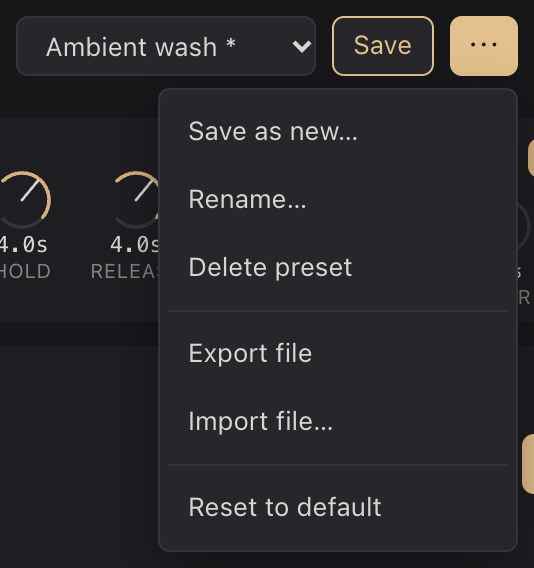
12345- Pick a preset to load it
- Save (lit = unsaved changes)
- Save as new / Rename / Delete
- Export / Import preset files
- Reset to default
- Pick a preset from the list to load it. If you have unsaved changes, you’re asked first.
- Save stores your changes in the current preset; it lights up (and the name gets a *) when there are unsaved changes.
- ⋯ — Save as new…, Rename…, Delete preset, Export file / Import file… (to share presets as files), Reset to default.
Presets save everything about the lanes, steps, gate and global degrade. The standalone app and the plugin share the same preset library.
MIDI
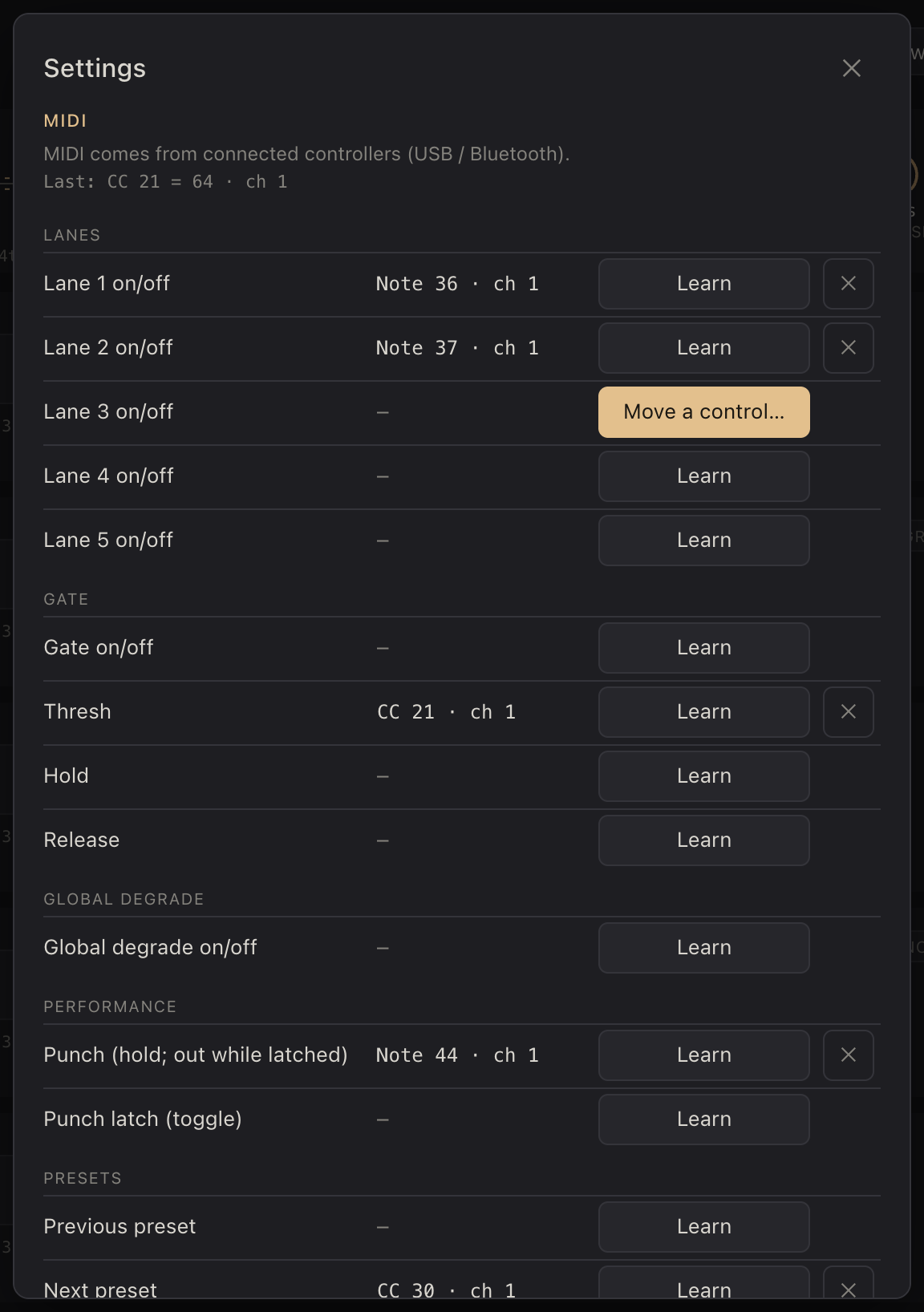 1234
1234- Where MIDI comes from, last message received
- Mapped control
- Learning: move or press a control
- Remove a mapping
Tap ⚙ to open Settings. To map a controller: tap Learn next to what you want to control, then press a key or move a knob. Tap ✕ to remove a mapping.
- Buttons (lane on/off, Gate on/off, Global degrade on/off, previous/next preset) act when you press — a note, or a control moved past its middle.
- Knobs (Thresh, Hold, Release) follow your control across their whole range.
- Previous / Next preset load presets in alphabetical order without asking — handy for switching scenes.
- Punch (hold) punches in while held. Punch latch toggles punch on and off; while latched, Punch (hold) punches out while held.
With Settings open, pressing or turning a mapped control flashes its row, so you can see what’s mapped where; unmapped controls show “not mapped” at the top. Mappings are shared between the app and the plugin.
Using it in AUM
- Add Lontanium to a channel as an Audio Unit — it’s listed with the music effects.
- Tempo and Play/Stop follow AUM: the BPM field shows AUM’s tempo, and the Play button shows Host ▶ / Host ■.
- Your settings are saved with the AUM session.
- For MIDI, route your controller to Lontanium in AUM’s MIDI matrix. Mappings keep working with the plugin window closed.
- AUM shows a piano keyboard under plugins that accept MIDI; hide it with the keyboard icon in the plugin window’s title bar.
- Noise (hiss, crackle, hum) follows AUM’s transport; switch Global degrade off when you want silence without stopping AUM.
Keyboard shortcuts
| Space | Play / Stop |
| F | Freeze the buffer |
| 1–5 | Lane on/off |
| P (hold) | Punch |
Tips
- Playing sparse notes? Turn Gate on so the buffer fills with notes, not silence.
- Chain lanes: a Granular lane into a Reverse lane, or anything into Degrade.
- Use conditions like 1:4 or 30% to keep a pattern evolving.
- Set up a few switched-off lanes with P on as on-demand effects, then play them with PUNCH.
- Map Next/Previous preset to a controller to switch between setups like scenes.