User manual
A tape-style looper with separate record and play heads, for iPad — standalone and AUv3.
What it is
Loopanium is a tape-style looper for iPad. It has up to four strips, each a loop of its own length in bars. Every strip has two heads, like a tape machine with separate record and playback heads: you record at one speed and direction, and it plays back at another. Record a phrase at ½× and play it at 1× an octave up, or play it backwards, or bounce back and forth between the ends.
A strip knows what to do once its recording is done: stop at the set length and play, or carry on overdubbing. Strips of different lengths loop against each other in time, and a gentle tape degrade (wow, flutter, wear, noise) sits over all of them.
It works as a standalone iPad app, and as an Audio Unit (AUv3) plugin inside hosts like AUM.
 12345
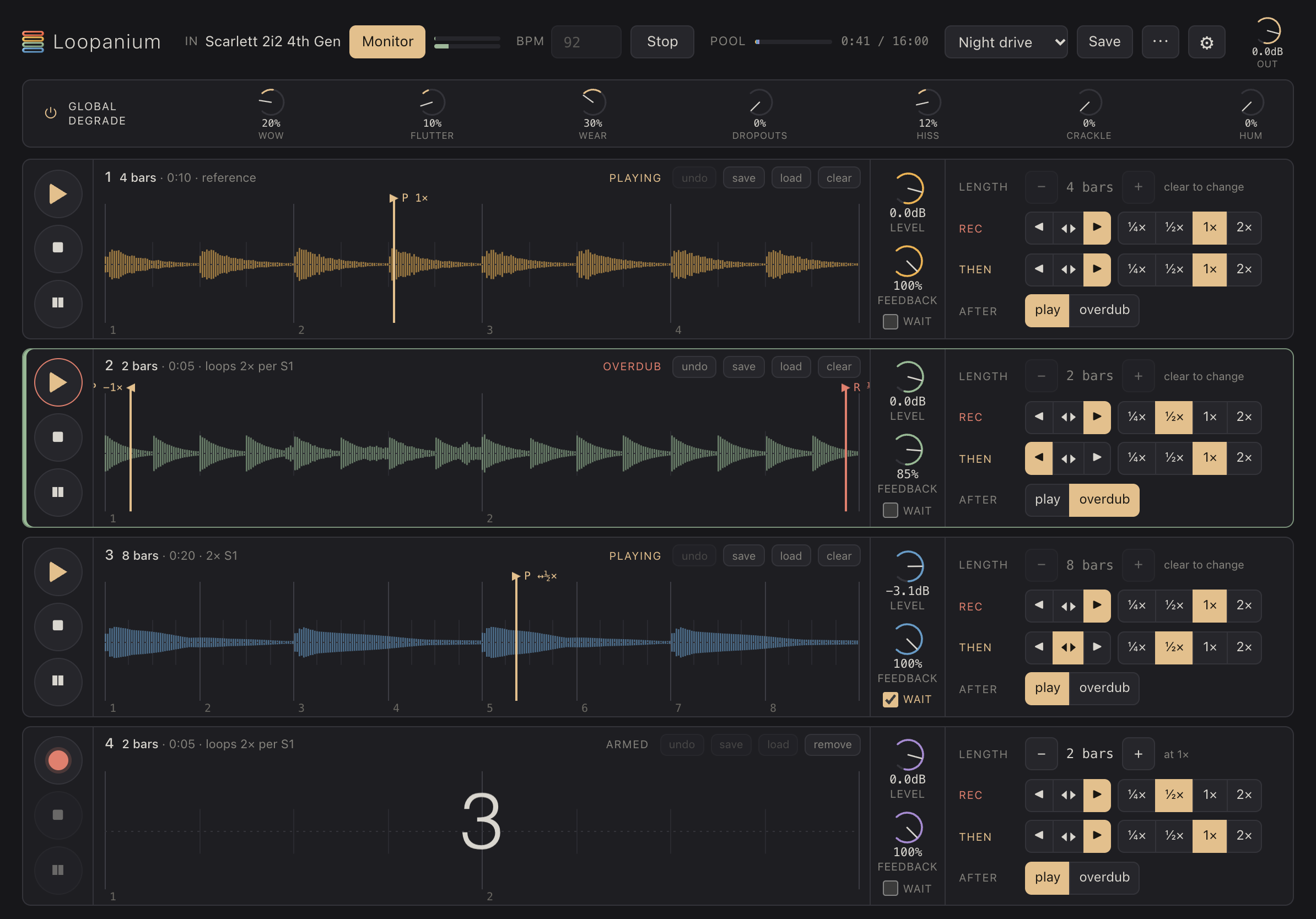
12345- Top bar: input, tempo, transport, pool, projects, settings, output
- Global degrade
- Up to four strips
- The active strip (highlighted)
- Count-in before recording
Getting started
- Connect your audio interface (or use the iPad’s microphone). The looper uses whatever input and output iPadOS is using.
- Tap Start audio in the top bar. The first time, allow microphone access — that’s how iPadOS lets apps hear any audio input. The top bar then shows the input’s name. Switch on Monitor to hear the input through the looper.
- Set the tempo in the BPM field.
- Tap the big button on the left of strip 1. A count-in runs (4 · 3 · 2 · 1) and recording starts on the next bar line. When the strip’s length is reached, it starts looping.
When it runs as a plugin, audio comes from the host, so there’s no Start audio button, and tempo and Play/Stop follow the host (see Using it in AUM).
The top bar
 12345678910
- Input, and Monitor (hear it)
- Input / output level
- Tempo (BPM)
- Play / Stop
- Time pool: used by each strip
- Project list
- Save project
- More project actions
- Settings (MIDI)
- Output level
- In — the input you’re recording from. Monitor lets you hear it; the degrade never touches it.
- Levels — input (top) and output (bottom).
- BPM — the tempo. It’s locked while any strip holds audio (clear the strips to change it), because the strips’ lengths are measured in bars.
- Play / Stop — starts all strips from the top of the bar, or stops them. Stopping ends a recording that’s still running, and turns overdubs back into plain playback.
- Pool — the recording time shared by all strips (16 minutes of stereo audio), with each strip’s share in its colour. See Lengths and the time pool.
- Projects, Save, ⋯ — see Saving your work. ⚙ opens Settings (MIDI).
- Out — the overall output level.
Strips
 123456789
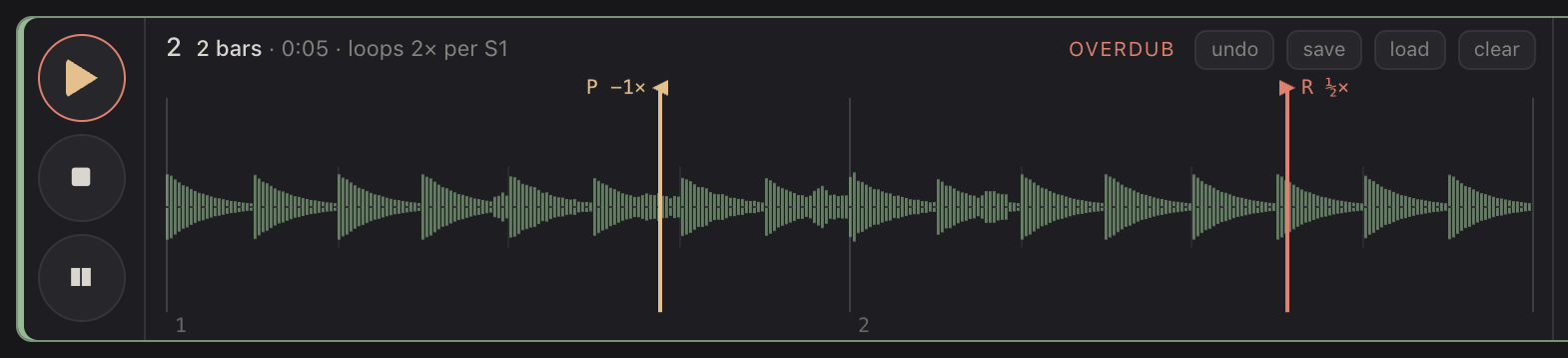
- Record / play / overdub
- Stop
- Pause
- Strip number, length, time
- State
- Undo / redo the last overdub
- Save as a recording
- Load a recording
- Clear (or remove an empty strip)
 1234567
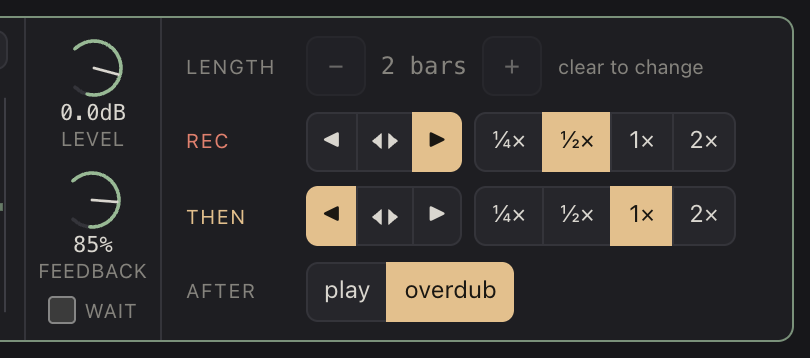
- Level
- Feedback
- Wait for sound
- Length in bars
- Rec: direction and speed
- Then: direction and speed
- After: play or overdub
A project starts with one strip. Tap + add strip under the last one to add another, up to four. A new strip gets the same length as the one above it.
- Main button — records, then switches between playing and overdubbing (see Recording).
- ■ Stop and ❚❚ Pause — see Stop, pause and the transport.
- Header — the strip’s number, its length in bars and in time, and how it relates to strip 1 (“loops 2× per S1”: twice as short; “2× S1”: twice as long). On the right: its state, then undo, save, load and clear. An empty strip (other than strip 1) shows remove instead of clear.
- Waveform — the strip’s audio, with its bars numbered underneath and its beats as short ticks. The play head is amber (P), the record head red (R), each labelled with its speed.
- Level — how loud the strip sits in the mix (−∞ to +6 dB). It only affects playback, not what’s recorded.
- Feedback — see Overdub, feedback and undo.
- Wait — wait for sound before recording (see Recording).
- Length, Rec, Then, After — set up before you record; see the next sections.
The highlighted strip is the active strip: the one MIDI controls act on (see MIDI). Touching a strip anywhere makes it active; a new strip becomes active when it’s added.
Knobs: drag up or down (hold Shift on a keyboard for fine control), or use a mouse wheel; double-tap to reset.
Recording
 1
1- Armed: waiting for the count-in
- Set the strip’s Length with − and +: 1 to 64 bars, measured at 1× speed. The time it takes is shown in the header.
- Tap the main button. The strip is armed, and a count-in shows in the strip: 4 · 3 · 2 · 1 · REC. Recording starts on a bar line, always after a full count. If nothing is playing yet, arming also starts the transport. Tap again while armed to cancel.
- The strip records until its length is filled, then carries on as its After setting says: play loops it, overdub keeps recording over it. Tap the main button during the recording to end it early; the strip keeps its full length.
Once a strip holds audio its length is locked (“clear to change”).
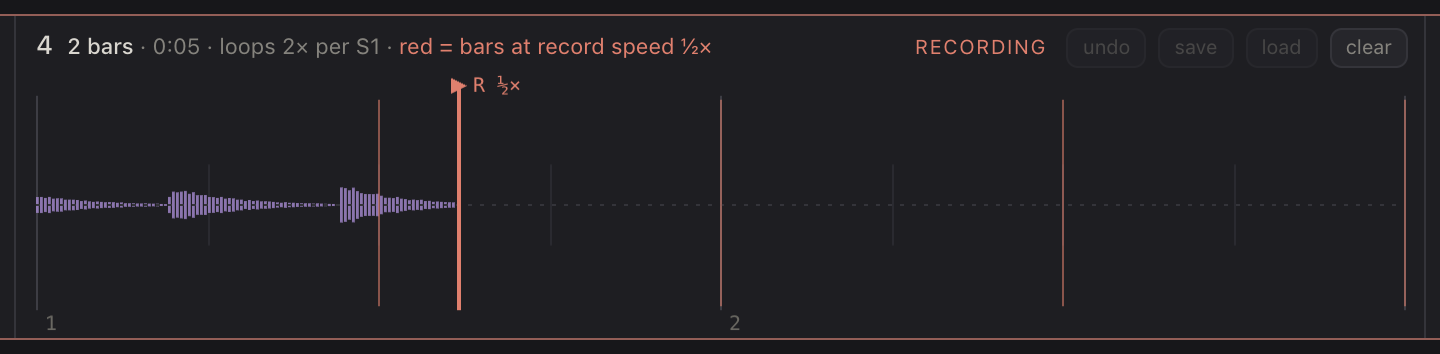
While a strip records for the first time, red lines show where the bars you’re playing land on the strip. At 1× they sit on the strip’s own bar lines. At ½× the record head moves at half speed, so a bar you play fills half a strip bar, and a red line appears every half bar. At 2× it’s the other way round.
Wait for sound
With Wait ticked, the strip doesn’t start on the bar line: after the count-in it waits (“waiting for sound”) until sound comes in, then records from that moment — keeping a few milliseconds from just before, so the first note’s attack isn’t cut. The strip remembers where in the bar it started, so it stays in time with the others; its bar lines are drawn where the real bars fall. Wait also applies to overdubs: an overdub starts writing when you start playing.
The two heads: Rec and Then
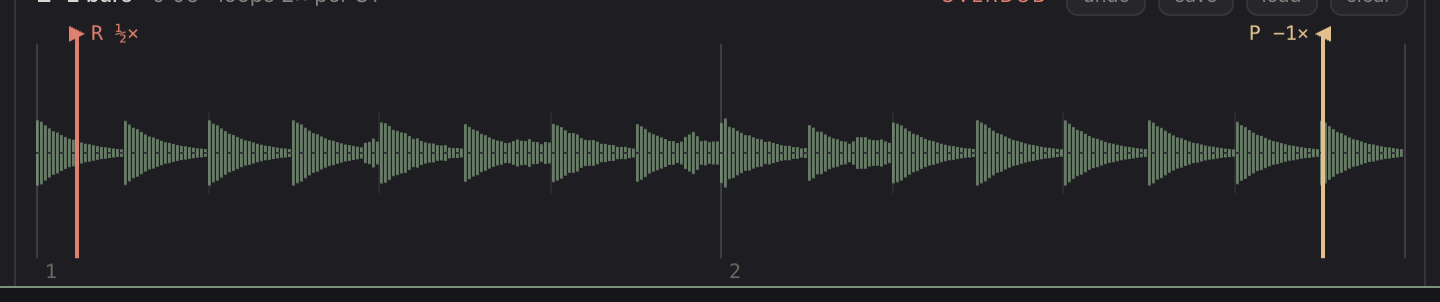
Each strip has a record head and a play head, set separately:
- Rec — the direction and speed the record head writes at.
- Then — the direction and speed the strip plays at, once recorded.
Directions: ◀ backward, ◀▶ ping-pong (back and forth between the ends) and ▶ forward. Speeds: ¼×, ½×, 1× and 2×. Speed is like tape: recording at ½× and playing at 1× sounds an octave up and twice as fast; recording at 2× and playing at 1× sounds an octave down. On the waveform the heads show − for backward and ↔ for ping-pong.
The record head keeps moving while the strip plays (silently), so an overdub starts wherever it happens to be, and with different Rec and Then settings the two heads drift through the loop independently.
Touch the waveform to move a head: while recording or overdubbing it moves the record head, otherwise the play head. Drag to scrub.
Because lengths are counted at 1×, the loop stays in time whatever the speeds: a 4-bar strip played at ½× takes 8 bars to come round.
Overdub, feedback and undo
Tap the main button of a playing strip to overdub: the record head adds what you play on top. Tap again to go back to plain playback.
Feedback sets how much of what’s already on the strip survives each pass of the record head. At 100% nothing fades. Lower, older layers fade each time you overdub over them, like tape loops in the old days. Feedback only works where the record head writes, while recording or overdubbing: plain playback never fades.
Undo takes the strip back to before the last overdub, and then turns into redo, which brings the overdub back. If you undo while still overdubbing, recording carries on over the restored strip; redo stays available until you play something new into it. Starting a new overdub makes a new undo point; a new recording, clear or load removes both.
Stop, pause and the transport
- ■ Stop silences the strip and moves both heads back to the start. Tap it again (or the main button) and the strip starts from the top on its next bar line (“Next bar”).
- ❚❚ Pause holds both heads where they are. Tap again to carry on at once.
- Play / Stop in the top bar starts and stops everything. Play starts the strips from the top of the bar, each at its own place in it.
Lengths and the time pool
Strips can be different lengths: 1, 2, 3, 4, 6, 8, 12, 16, 24, 32, 48 or 64 bars. They all count bars at the same tempo, so they always line up — a 2-bar strip loops twice for each pass of a 4-bar one.
All strips share one pool of recording time: 16 minutes of stereo audio. Every strip takes its full length from the pool as soon as it’s set, whether it holds audio yet or not. The bar in the top bar shows each strip’s share in its colour. When the pool is full, longer lengths and new strips aren’t available until you shorten or remove a strip.
Global degrade
 123
123- Global degrade on/off
- Wow, flutter, wear, dropouts
- Hiss, crackle, hum
The row under the top bar adds tape-style wear to all strips together (the monitored input stays clean):
- Wow (slow pitch drift), Flutter (fast warble), Wear (saturation and dulling), Dropouts (random level dips).
- Hiss, Crackle, Hum — noise.
Tap ⏻ Global degrade — the icon or the label — to switch it all off or on without losing the settings.
Saving your work
Recordings
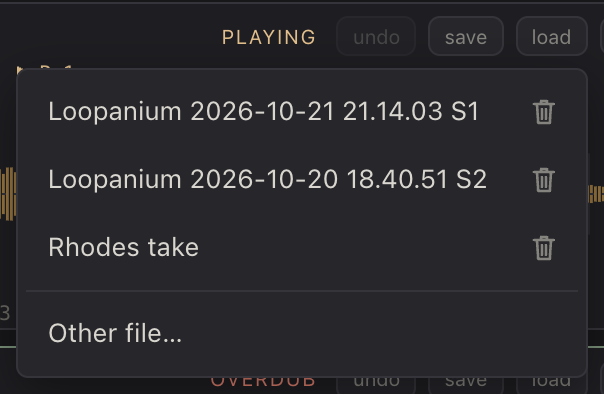 123
123- Saved recordings, newest first
- Delete a recording
- Any WAV from Files
- save in a strip’s header saves its audio as a recording: a 24-bit stereo WAV, named with the date, time and strip number. It also stores the strip’s length, tempo and place in the bar, so it lines up again when loaded.
- load lists your saved recordings, newest first; tap one to load it into the strip. The trash icon deletes a recording. Other file… loads any WAV from the Files app (it’s added to your recordings, too).
- The strip takes the recording’s length. If no other strip holds audio, the tempo changes to the recording’s; otherwise it keeps its own speed.
Projects
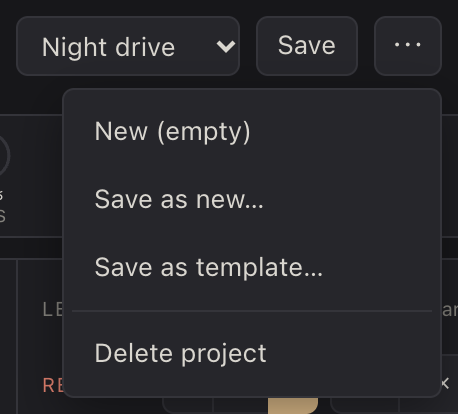 12345
12345- Pick a project to load it
- Save the project
- New, empty project
- Save as template (settings only)
- Delete the project
- A project holds all the strips — their settings and their audio — plus the tempo and the degrade.
- Pick a project from the list to load it. If strips hold audio, you’re asked first.
- Save stores the current project (the first time, it asks for a name).
- ⋯ — New (empty), Save as new…, Save as template… (the settings only, no audio: a ready-made setup to record into), Delete project.
In the Files app
Recordings and projects appear in the Files app under On My iPad › Loopanium, as ordinary WAV files you can share or copy elsewhere. This is a copy, updated each time the app opens: deleting files there doesn’t remove them from the looper. The standalone app and the plugin share one library, and what you save in the plugin shows up in Files once you open the app.
MIDI
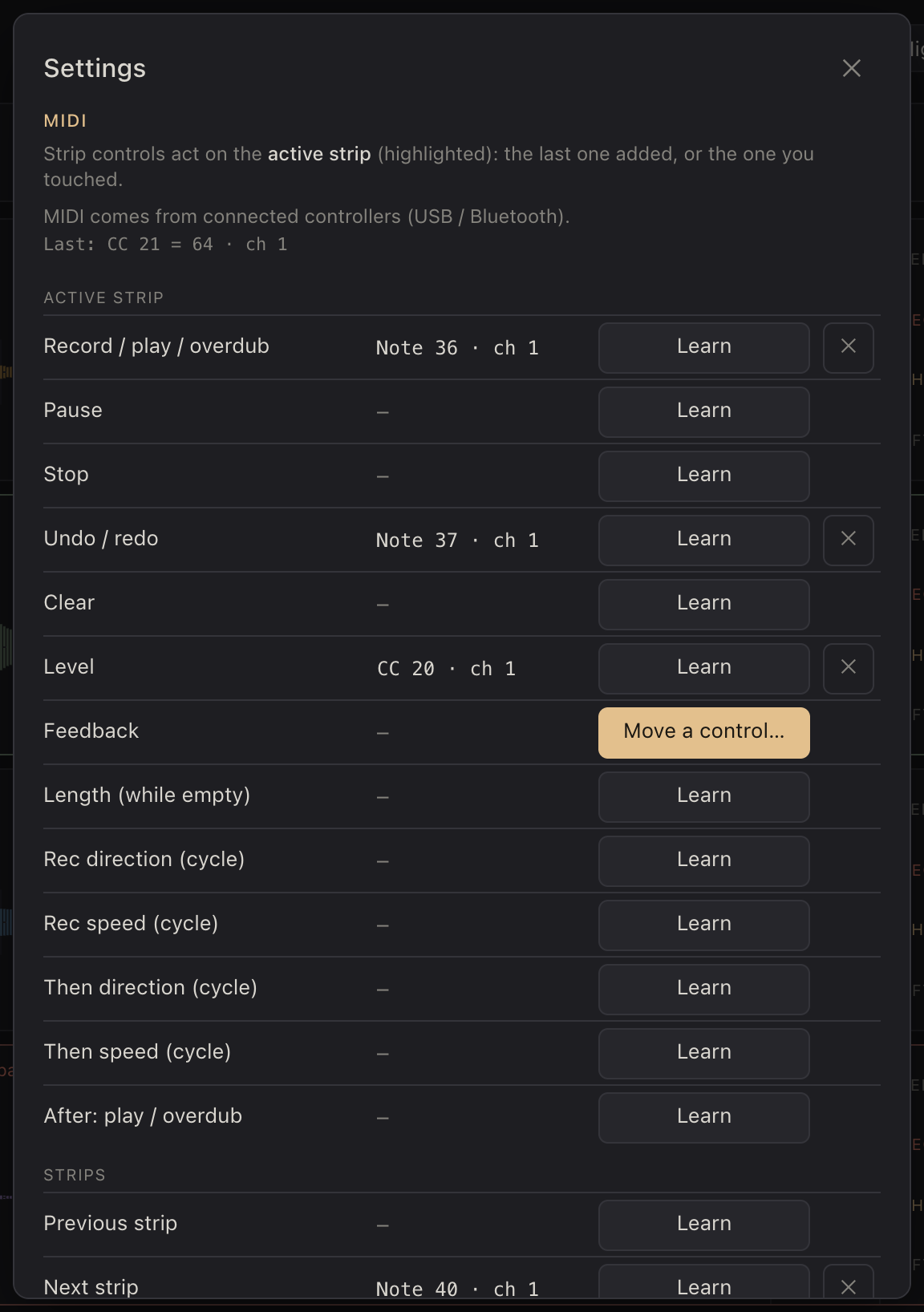 12345
12345- Strip controls act on the active strip
- Where MIDI comes from, last message received
- Mapped control
- Learning: move or press a control
- Remove a mapping
Tap ⚙ to open Settings. To map a controller: tap Learn next to what you want to control, then press a key or move a knob. Tap ✕ to remove a mapping.
Strip controls act on the active strip (highlighted), so a handful of pads and knobs can play all four strips: map Previous / Next strip to move between them.
- Buttons act when you press — a note, or a control moved past its middle: Record / play / overdub, Pause, Stop, Undo / redo, Clear, After play / overdub, Previous / Next strip.
- Rec and Then direction and speed are buttons too: each press moves on to the next setting.
- Knobs follow your control across their whole range: Level, Feedback, and Length (only while the strip is empty).
With Settings open, pressing or turning a mapped control flashes its row, so you can see what’s mapped where; unmapped controls show “not mapped” at the top. Mappings are shared between the app and the plugin.
Using it in AUM
- Add Loopanium to a channel as an Audio Unit — it’s listed with the music effects. It records whatever comes into that channel.
- Tempo and Play/Stop follow AUM: the BPM field shows AUM’s tempo (marked host), and the looper’s own Play button is off.
- Your strips are saved with the AUM session: their settings and their audio. Reopening the session brings them back. Audiobus 3 sessions work the same way.
- For MIDI, route your controller to the looper in AUM’s MIDI matrix. Mappings work once the plugin window has been opened in the session.
- AUM shows a piano keyboard under plugins that accept MIDI; hide it with the keyboard icon in the plugin window’s title bar.
Tips
- Record at ½× and play at 1× for an octave-up, double-time version of a phrase; record at 2× for a slow, low one.
- Set Then to ◀ for a reversed loop, or ◀▶ for one that turns around at each end.
- Set up strips before you play — say a 4-bar strip that plays at 1× and a 2-bar one that plays backwards at ½× — and save them as a template, ready for the next session.
- Bring Feedback down to 70–85% and keep overdubbing for slowly changing, decaying layers.
- Tick Wait for loose, free-time playing: the strip starts with your first note, not the bar line.
- Map Next strip and Record / play / overdub to two pads, and you can build up all four strips without touching the screen.